
FOTA
 Installation files
FOTA Operation
FOTA (Firmware Over-The-Air) is an additional feature for Advantech routers that enables automatic or manual firmware updates for their cellular modules. FOTA updates only the cellular module's firmware — not the router's main firmware.
For proper operation, the router must have either an active Internet connection to access the default Advantech FOTA server or a network connection to a custom-configured FOTA server.

FOTA Router App
Caution
Uploading incorrect cellular module firmware may irreversibly damage the router. Update firmware from any source other than the Advantech FOTA server at your own risk!
Once the FOTA Router App is installed, access its web interface by clicking the Router App name on the Router Apps page of the router's web interface. The left side of the interface displays the Router App menu.
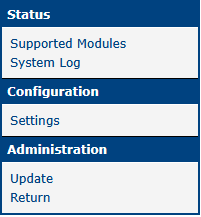
To return to the router's main web interface, use the Return button in the Administration section.
Status
Supported Cellular Modules
The Supported Modules page provides a list of cellular modules compatible with the FOTA Router App. The modules are grouped by manufacturer for easier navigation.
Logging Information
The System Log page displays log messages specifically related to the FOTA Router App, allowing you to monitor the app's operation and identify configuration issues. To download the log messages as a text file (.log), click the Save Log button. To generate a detailed report (.txt) for technical support, click the Save Report button.
Configuration
Automatic Updates
To configure automatic updates, navigate to Configuration → Settings. Select the Enable automatic update checkbox and click Apply. If you prefer to perform only manual checks and updates, refer to the Administration → Update section instead.
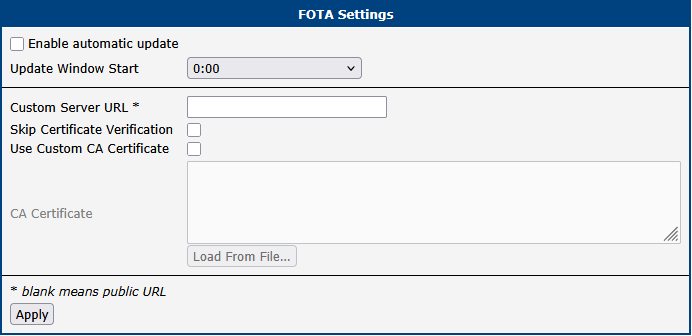
| Item | Description |
|---|---|
| Enable automatic update | Enables scheduled automatic updates using a preset connection to the Advantech FOTA server, which contains up-to-date firmware information. |
| Update Window Start | Specifies the hour when automatic updates start. You can also choose between daily and weekly update frequency. The update process may start a few minutes after the scheduled time. |
| Custom Server URL | Optional address of a custom copy of the Advantech FOTA server. Useful for isolated networks. See the Custom FOTA Server chapter for instructions on how to create the custom server. |
| Skip Certificate Verification | When enabled, the router skips the verification of the server's certificate. |
| Use Custom CA Certificate | Enable to use a custom CA certificate instead of the default Advantech CA certificate. |
| CA Certificate | Field for pasting or uploading your custom CA certificate. |
FOTA configuration items
Firmware Update Process
Once automatic updates are enabled, the router connects to the configured server to check for new firmware according to the interval defined in Update Window Start.
The FOTA server hosts a JSON file containing cellular module names, firmware release numbers, dependencies, and links to firmware files. The Router App downloads this JSON file and compares available firmware releases with the version currently installed in the cellular module. If a newer version is available, the corresponding file is downloaded. A stable Internet connection and continuous power supply are required for a successful download.
The Router App checks for new firmware whenever the router is connected to the Internet, regardless of which interface is in use.
Once a new firmware file has been downloaded, the update is applied automatically. The cellular module restarts during this process. The router remains operational throughout the update, but cellular connectivity is temporarily unavailable until the module restarts.
Administration
Update
The Update page displays available FOTA packages, with the newest version shown first. Click the Load Available FOTA Packages button to load the list from the FOTA server. After the first load, the button is renamed Reload Available FOTA Packages and the time of the last check appears next to it. Use the button to manually refresh the list.
Depending on the cellular module, the FOTA system may use a delta upgrade mechanism. In this case, instead of a single universal update package, multiple installation files may be listed, all targeting the same final firmware version.
The figure below shows an example of a module using the delta upgrade mechanism. The module model is SIM7070, with the currently installed firmware version 1951B14SIM7070. Three packages are listed, all targeting version 1951B17SIM7070. Each package is designed for a specific source firmware version. As a result, you can use only the package that matches the currently installed firmware. In this example, only the package for upgrading from 1951B14SIM7070 to 1951B17SIM7070 has the Install button enabled.
Tips
The Upgrades field, displayed as a tooltip for each entry, indicates the source firmware version the update package applies to — not the version that will be installed.
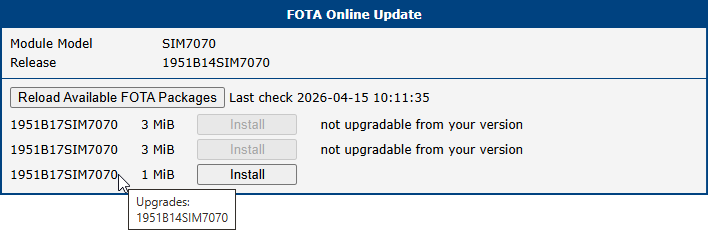
The following messages may appear in the last column of the firmware list. Each message is followed by the recommended action:
- not upgradable from your version → choose the highest upgradable version
- requires ICR-OS x.y.z → update the router's firmware first
- requires FOTA x.y.z → update the FOTA Router App first
Tips
When you hover over a firmware entry, a pop-up window shows the compatible firmware versions available for an upgrade. When you hover over the firmware size, the pop-up window shows the actual filename of the firmware.
Custom FOTA Server
A router without Internet access can update the firmware of its cellular module from a custom copy (mirror) of the Advantech FOTA server. Create the copy on a computer with Internet access, and then serve it to the router over the local network or from a USB flash drive or SD card.
Getting the Content
The Advantech FOTA server is a common HTTP server, so any web browser or command-line tool can download its content. Repeat the following steps for each cellular module model.
Identify the cellular module model. The FOTA Router App uses its name to access the FOTA server. There are two ways to find it:
On routers with firmware 6.6.0 or newer, the model is shown as Model on the Status → Mobile WAN page.
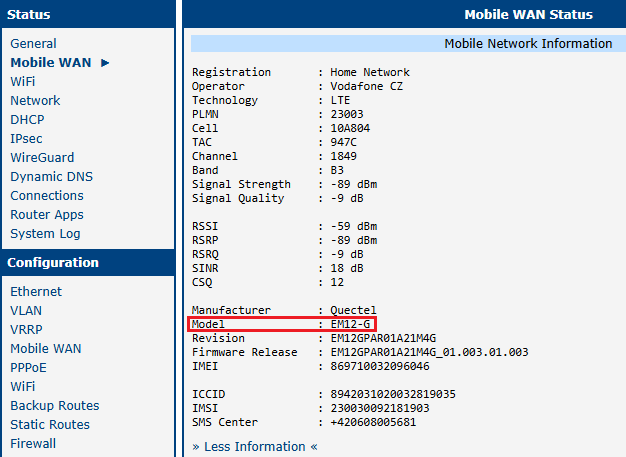
Module model on the Mobile WAN page On routers with older firmware, the Model on the Status → Mobile WAN page may lack the module variant (for example, EC25 instead of EC25-EUX). Use the Module Model shown on the Update page of the FOTA Router App instead.
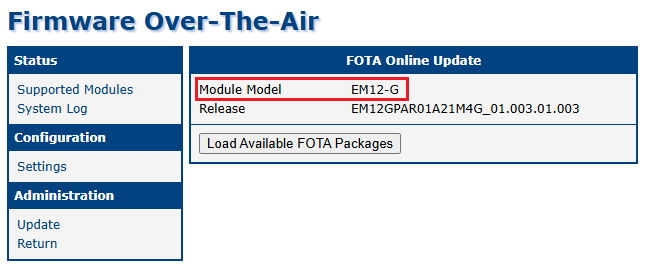
Module model on the FOTA Update page
The FOTA URL of the module has the following format:
https://fota.advantech.cz/cellular/<model>/For example, the URL of the EM12-G module in the screenshots is:
https://fota.advantech.cz/cellular/EM12-G/Create a folder named after the module model, for example
EM12-G. Choose its parent folder according to how you will serve the content; see the Serving the Content section.Download the metadata file
index.jsonand its signatureindex.sigto the folder. Their URLs have the following format:https://fota.advantech.cz/cellular/<model>/index.json https://fota.advantech.cz/cellular/<model>/index.sigUse a command-line tool, for example:
curl -O https://fota.advantech.cz/cellular/EM12-G/index.json -O https://fota.advantech.cz/cellular/EM12-G/index.sigThe
curltool is included in Windows 10 and later. On Linux,wgetworks as well.Alternatively, open each URL in a web browser and save the page using Save page as from the browser menu or the Ctrl+S shortcut (Cmd+S on macOS). The figure below shows the
index.jsonfile opened in a web browser.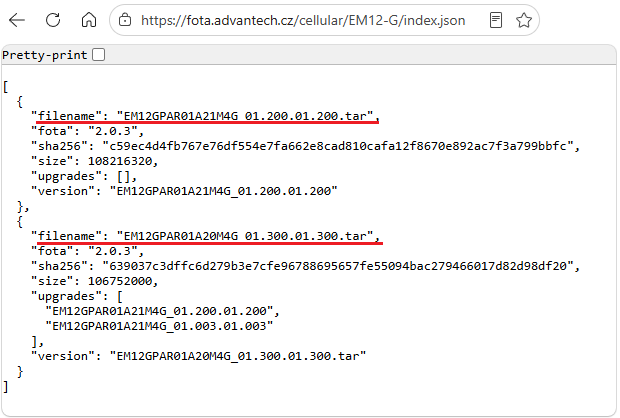
The index.json file in a web browser (Microsoft Edge) Tips
The router verifies
index.jsonagainst its signature, so store both files unchanged. Do not editindex.json.Download the firmware files, again with a command-line tool or a web browser. Their names are listed in
index.jsonasfilenameitems (underlined in the previous figure). The URL of each file has the following format:https://fota.advantech.cz/cellular/<model>/<filename>For example:
https://fota.advantech.cz/cellular/EM12-G/EM12GPAR01A21M4G_01.200.01.200.tar
After you complete all the steps for the example modules EM12-G and RG255C-GL, the following folders and files are available:
EM12-G
    index.json
    index.sig
    EM12GPAR01A21M4G_01.200.01.200.tar
    EM12GPAR01A20M4G_01.300.01.300.tar
RG255C-GL
    index.json
    index.sig
    RG255CGLABR01A04M4G_A0.300.A0.300.tar
    RG255CGLABR01A05M4G_A0.301.A0.301.tar
    RG255CGLABR01A10M4G_A0.300.A0.300.tar
Optionally, check the integrity of the downloaded files by comparing their SHA-256 checksums with the sha256 items in index.json. This step is not required because the router performs the same check before installation.
$ sha256sum RG255CGLABR01A04M4G_A0.300.A0.300.tar
e6b405f43ab39138f511726726f3991cd42828e0452e7ebcd5f8ef44ec65a039  RG255CGLABR01A04M4G_A0.300.A0.300.tar
On Windows, use the following command in Command Prompt:
certutil -hashfile <filename> SHA256Serving the Content
The router can access the mirrored files over HTTP/HTTPS or FTP/FTPS, from a network drive (NFS), or from a USB flash drive or SD card.
HTTP/HTTPS
Any web server that serves static files works: Apache, lighttpd, Microsoft IIS, nginx, and so on. The router's Custom Server URL setting supports the following URL formats:
| Format | Example | Description |
|---|---|---|
http://<server_address> | http://192.168.10.1 | HTTP protocol. The model folders are placed directly in the document root. |
http://<server_address>/<folder> | http://192.168.10.1/cellular | The model folders are placed in a subfolder of the document root. |
http://<server_address>:<port>/<folder> | http://192.168.10.1:8080/cellular | A non-standard port. |
https://<server_address>/<folder> | https://192.168.10.1/cellular | HTTPS protocol. See the certificate requirements below. |
Custom Server URL formats for HTTP and HTTPS
Do not end the URL with a slash; the router appends the model folder name to it.
If no suitable web server is available, use the built-in Python web server as a quick and simple solution. It needs no installation or configuration and is sufficient for testing or an occasional update. For example:
python3 -m http.server 8080 --directory /srv/fotaThis command serves the /srv/fota folder (on Windows, for example, C:\fota) on port 8080. If the model folders are placed in /srv/fota/cellular, the Custom Server URL is http://<server_address>:8080/cellular. Make sure the computer's firewall allows the port.
For HTTPS connections, the router verifies the server certificate. The certificate must:
- be issued by a CA the router trusts: either a public CA or a private CA entered in the FOTA settings (Use Custom CA Certificate),
- contain the host name or IP address used in the server URL in its Subject Alternative Name (
subjectAltName), and - be valid at the router's current date and time.
FTP/FTPS
Any FTP server works. Copy the folder that contains the model folders (for example, cellular) to the home folder of the FTP account. The router's Custom Server URL setting supports the following URL formats:
| Format | Example | Description |
|---|---|---|
ftp://<server_address>/<folder> | ftp://192.168.10.1/cellular | FTP protocol, anonymous access. The path is relative to the home folder. |
ftp://<user>:<password>@<server_address>/<folder> | ftp://joe:pwd1@192.168.10.1/cellular | Access with credentials. |
ftp://<server_address>/%2F<folder> | ftp://192.168.10.1/%2Fsrv/fota/cellular | An absolute path on the server. |
ftps://<server_address>/<folder> | ftps://192.168.10.1/cellular | FTPS protocol with implicit TLS (port 990). |
Custom Server URL formats for FTP and FTPS
Warning
The router stores the password in plain text in its configuration, so use a read-only account.
Percent-encode special characters in the user name, password, or path, for example, @ as %40 and : as %3A.
The certificate requirements are the same as for HTTPS.
USB Flash Drive and SD Card
Copy the model folders to a USB flash drive or SD card formatted with FAT32, exFAT, or ext4. After you plug the drive into the router, mount it from the router's command line. For a USB flash drive, use:
mount /dev/sda1 /mntFor an SD card, use:
mount /dev/mmcblk0p1 /mntThen use the corresponding path as the Custom Server URL, for example file:///mnt when the model folders are placed in the root of the drive or card, or file:///mnt/cellular when they are placed in the cellular subfolder.
Network Drive
Using a network drive is similar to using a USB flash drive or SD card; mount the drive first. The router supports only NFS version 4.0, so use a Linux server. For example:
mount -t nfs -o nfsvers=4,ro 192.168.1.10:/srv/fota /mntHere, 192.168.1.10 is the IP address of the NFS server and /srv/fota is the exported folder. Specify the server by its IP address; host names are not supported.
Running the Firmware Update
Go to Configuration → Settings and enter the URL from the previous sections into Custom Server URL. For HTTPS or FTPS with a certificate issued by a private CA, select Use Custom CA Certificate and paste the CA certificate into CA Certificate. Click Apply and continue as described in the Update section.
Tips
This procedure is intended for one-time manual updates. The custom copy is not updated automatically, so repeat the steps in Getting the Content before each update to get the latest firmware.